


- Official Post
Over the time your Windows might get slow and this not due to the system in itself but simply maybe because the TRIM isn't executed on your System.
You can check this by right clicking the start menu and than choose "Terminal (Admin)"
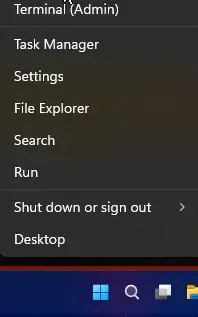
First you gonna do a speed test with the following command and result:
winsat disk -drive c


!!! THIS IS THE RESULT YOU'LL SEE !!!


Windows System Assessment Tool
> Running: Feature Enumeration ''
> Run Time 00:00:00.00
> Running: Storage Assessment '-drive c -ran -read'
> Run Time 00:00:00.44
> Running: Storage Assessment '-drive c -seq -read'
> Run Time 00:00:04.72
> Running: Storage Assessment '-drive c -seq -write'
> Run Time 00:00:02.50
> Running: Storage Assessment '-drive c -flush -seq'
> Run Time 00:00:00.63
> Running: Storage Assessment '-drive c -flush -ran'
> Run Time 00:00:00.53
> Dshow Video Encode Time                      0.00000 s
> Dshow Video Decode Time                      0.00000 s
> Media Foundation Decode Time                 0.00000 s
> Disk  Random 16.0 Read                       751.09 MB/s          8.5
> Disk  Sequential 64.0 Read                   2611.83 MB/s          9.2
> Disk  Sequential 64.0 Write                  2139.40 MB/s          9.1
> Average Read Time with Sequential Writes     0.059 ms          8.9
> Latency: 95th Percentile                     0.145 ms          8.9
> Latency: Maximum                             0.550 ms          8.9
> Average Read Time with Random Writes         0.052 ms          8.9
> Total Run Time 00:00:08.94Important in the result are the Disk Sequential 64 Read and Write.
Now you execute this command here:
defrag /O c:


!!! THIS IS THE RESULT YOU'LL SEE !!!

Invoking retrim on Windows (C:)...


The operation completed successfully.

Post Defragmentation Report:

        Volume Information:
                Volume size                 = 476,47 GB
                Free space                  = 244,79 GB

        Retrim:
Total space trimmed = 248,31 GBThe result can take some seconds as also some minutes.
This will force a retrim on your SSD! - PAY ATTENTION: Never let run a normal defrag on a SSD as you will reduce his lifetime with that!
Now execute the first command again and compare the Disk Sequential Values with each other.
In my case they were nearly the same on the one machine and on another about 300MB/s in difference. If they are nearly the same this is good as this normally means that your TRIM is working correctly.
Microsoft Windows defrag has this integrated and you can schedule this execution on a regular basis (weekly).
Search defrag and optimization in the start menu:

Check on the bottom here if the scheduled optimization are active or not:

If you click on change settings you should see this:
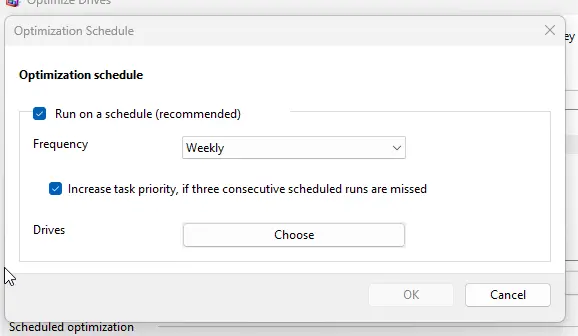
And under Drives you click Choose to check if your SSD is also checked:
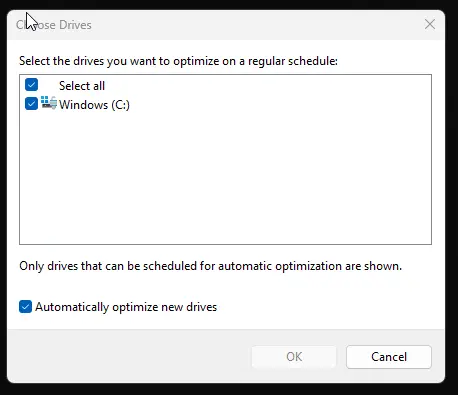
Sometimes the schedule is active but the disc isn't activated.