


- Official Post
Sometimes Windows Profiles gets corrupt especially roaming profiles or if different users are working on the same machine someone is deleting files from another profile just for fun or what ever.
Than it often happens that you get a temporary profile (a small popup appears on the bottom right when login in.
Depending on what Windows version and theme it may look like this:

Than you have some possibilities to restore normal functionality of that user profile (but all settings will always be gone).
Moving entire profile as backup and deleting it from the advanced system settings
When the profile of a user is corrupt you have to recreate it. Sometimes users have several GB of data and copying that as backup takes often too long and so you can simply move the users directory. But be aware that you must be in the correct settings page before doing that.
- First of all: Reboot the machine so that everything gets removed from the memory and log in as an administrator.
- Now open the Explorer and navigate to the users directory so that you can easily move or rename it. So normally it should be under c:\users.
- Than open Settings → System → About and click on the right on "Advanced System Settings"
You can also enter under run (Windows Key + R) the following: systempropertiesadvanced.exe - Here under Advanced look for User Profiles and click on settings.
You should than see a list of the profiles present on the system - also the one which is corrupt.
If not look into the second chapter to delete it from the registry.
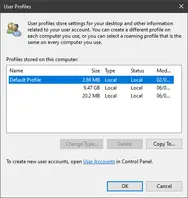
Now you can move the profile as backup (or rename it) and then you can click delete in the settings pane.
After the reboot the profile should then get recreated from scrap.
Manual deleting within the registry
Sometimes it happens that the profile is not listed anymore within the settings or someone deleted the wrong files etc.
Here just be sure that you restarted the machine and that the users folders no longer exists (rename it if present or move it).
After that open your registry with regedit.exe and navigate to the following place.
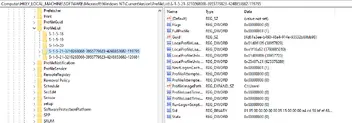
For some keys you should find the value "ProfileImagePath" where you can check that you have the correct users (it points to the folder of the user profile).
If you have figured the correct key right click it and export it (as backup like always). Than delete it.
Often the key exists a second time with the same value but .class at the end - This one you should also backup and delete.
After that restart the computer and the profile should than be recreated.
In some cases, maybe 1 of 100, that doesn't work and here only a reinstall of the machine can help.